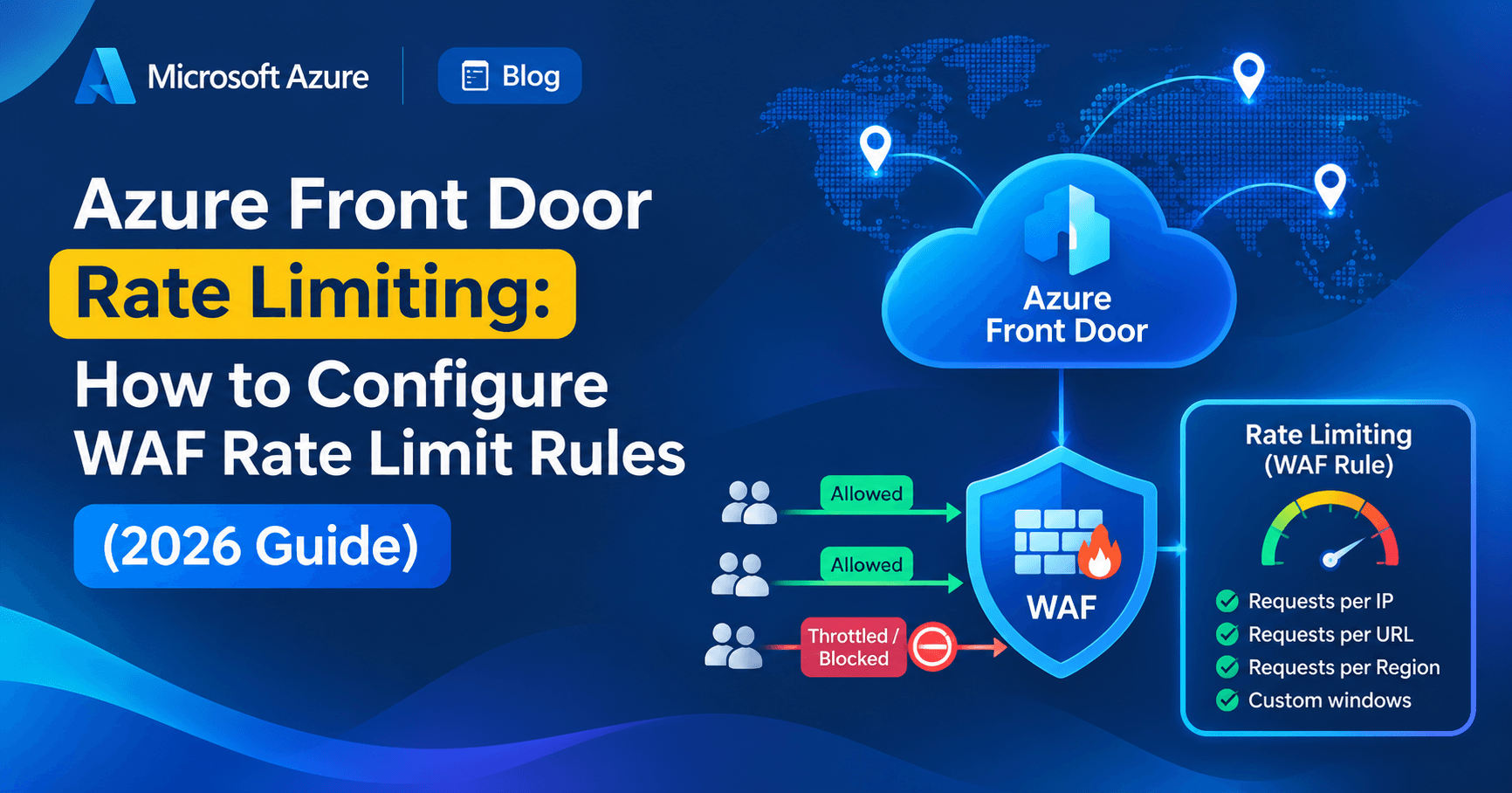
Azure Front Door rate limiting lets you cap how many requests a client can send in a 1- or 5-minute window, using Azure Web Application Firewall (WAF) rate limit rules at the global edge. It stops HTTP floods, credential stuffing, scrapers and runaway clients before they reach your origin — with no code changes.
WAF managed rules catch malicious content such as SQL injection. They do not catch volume. A bot sending thousands of valid login requests passes every managed rule; only a rate limit rule stops it. This guide explains how Azure Front Door rate limiting works, how to configure it with the Azure portal, Azure CLI and Bicep, and how to tune thresholds so you block attackers rather than customers.
Key takeaways
Rate limit rules are WAF custom rules with a threshold, a 1- or 5-minute window, match conditions and an action.
Counting is per client IP (socket IP) by default. Front Door Premium adds preview grouping by country, ASN, JA4 fingerprint or None.
Each edge location counts separately — size thresholds from per-POP traffic, not global traffic.
Windows are fixed: once a client trips the limit, it stays limited until the window ends.
Blocked clients get HTTP 429 Too Many Requests by default.
Always deploy new rules in Log mode first.
What is Azure Front Door rate limiting?
Azure Front Door rate limiting is a WAF feature that counts matching requests per client and applies an action — Block, Log, Redirect, JS Challenge or CAPTCHA — once a threshold is exceeded within a 1- or 5-minute window. It runs at the Front Door edge, after TLS termination and before caching or routing to your origin.
Inside a WAF policy, rules run in this order:
HTTP DDoS ruleset (Premium) — runs first; an Allow custom rule cannot bypass it.
Custom rules, including rate limit rules, by ascending priority number.
Managed rule sets (Default Rule Set, Bot Manager) on Premium.
Evaluation stops at the first terminating action; Log does not stop it. You can attach WAF policies at profile, domain or route level — the most specific scope wins.
Feature | Front Door Standard | Front Door Premium |
|---|---|---|
Rate limit rules (per client IP) | Yes | Yes |
Group by country, ASN, JA4 or None | No | Yes (preview) |
JS Challenge and CAPTCHA actions | No | Yes |
Managed rules and Bot Manager | No | Yes |
How Azure Front Door rate limit rules work
A rate limit rule is a WAF custom rule with ruleType: RateLimitRule. Its match conditions decide which requests are counted; the threshold and window decide when the action fires.
Setting | API field | Values and notes |
|---|---|---|
Threshold |
| Requests allowed per group, per window, per edge location |
Window |
|
|
Group by |
|
|
Match conditions |
| At least one; conditions are AND-ed, values within one condition are OR-ed |
Action |
|
|
Priority |
| Unique; lower numbers run first |
To rate limit all traffic, match RequestHeader → Host → GreaterThanOrEqual → 0; every valid request has a Host header. To exempt partners or monitoring, add a negated IPMatch condition on SocketAddr.
Example: rate limit login requests per IP
{
  "name": "RLLoginPerIp",
  "priority": 20,
  "ruleType": "RateLimitRule",
  "rateLimitDurationInMinutes": 5,
  "rateLimitThreshold": 100,
  "matchConditions": [
    {
      "matchVariable": "RequestUri",
      "operator": "BeginsWith",
      "matchValue": [ "/account/login", "/api/auth/token" ],
      "transforms": [ "Lowercase" ]
    },
    {
      "matchVariable": "RequestMethod",
      "operator": "Equal",
      "matchValue": [ "POST" ]
    }
  ],
  "action": "Block"
}
This counts POST requests to the login paths per client IP and blocks an IP for the rest of the 5-minute window once it passes 100. The Lowercase transform stops /Account/Login slipping past the counter.
How Azure Front Door counts requests
Front Door rate limiting is fast but approximate. Three behaviours explain almost every surprise.
1. Each edge location (POP) has its own counter
Counts are not shared between edge locations or aggregated globally. A per-IP rule is still enforced close to its threshold, because one client usually lands on one POP. Grouped rules are different: Microsoft's example is a country rule with a 1,000/min threshold that can allow about 3,000/min in total when that country's traffic hits three POPs. Size thresholds from per-POP traffic, not total traffic.
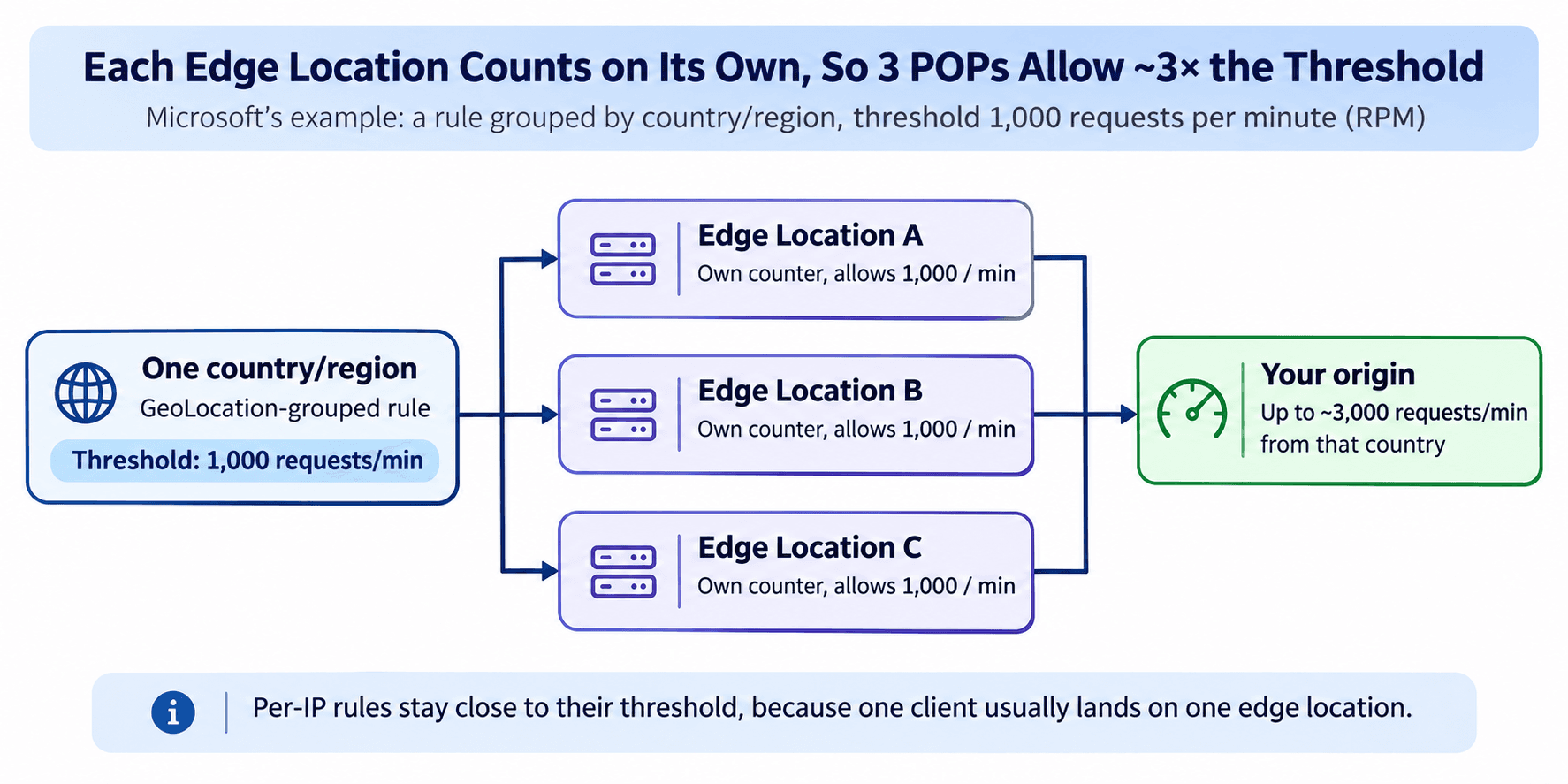
Each POP admits up to the threshold on its own, so a grouped rule's real ceiling is the threshold times the number of POPs its traffic reaches.
2. Fixed windows: a breach lasts until the window ends
The window is fixed, not sliding. Once a client exceeds the threshold, every matching request is limited for the rest of that window. A client that trips a 1-minute rule after 10 seconds is limited for 50 seconds; on a 5-minute rule, for 4 minutes 50 seconds. That is why Microsoft recommends the 5-minute window with the smallest acceptable threshold for HTTP flood protection.
3. Low thresholds leak slightly
If a client opens a new TCP connection per request, requests can land on Front Door servers whose counters have not synced yet. Below roughly 200 requests per minute, some requests over the limit may get through. Use rate limiting to stop abnormal traffic, not as an exact quota — for per-consumer quotas, use Azure API Management.
When a Block fires, clients receive HTTP 429 Too Many Requests (normal WAF blocks return 403), unless you set a custom block response for the policy.
Rate limit by IP, country, ASN or JA4 fingerprint
The group-by setting decides which requests share a counter. Per-IP is generally available on all tiers; the other options are in preview on Front Door Premium.
Group by | One counter per | Best against | Main risk |
|---|---|---|---|
| Client IP | Brute force, single-source floods | Many users behind one proxy or NAT share a limit |
| Country/region | Floods concentrated in one country | Real users in that country are limited too |
| Network (ISP, cloud host) | Botnets on hosting providers | Big consumer ISPs hold many real users |
| TLS client fingerprint | Bots that rotate IPs but reuse one client | Popular browsers share fingerprints |
| All matching requests | Capping load on one endpoint, such as sign-in | A breach limits everyone at that POP |
Microsoft's guidance: use grouped rules in addition to a per-IP rule, never instead of it. Attackers can change TLS fingerprints cheaply; new IP addresses cost them more.
The proxy trap: counting uses the socket IP — the address that opened the TCP connection to Front Door — not X-Forwarded-For. If users arrive through another CDN, a corporate proxy or carrier-grade NAT, they share one counter, and country, ASN and JA4 describe the proxy. In WAF logs, check socketIP, not clientIP, to see what was counted.
Rate limit actions: Block, Log, JS Challenge and CAPTCHA
Choose the action by who is calling: Block for APIs, JS Challenge for browser pages, CAPTCHA for high-value human flows, and Log while you test.
Action | Tier | What happens | Use for |
|---|---|---|---|
| All | Edge returns 429; origin never sees the request | APIs, obvious floods |
| All | Logs the match, keeps evaluating rules | Every new rule's trial period |
| All | Sends client to the policy redirect URL | A "slow down" page |
| Premium | Invisible browser check; scripts fail | Sign-in and other HTML pages |
| Premium | Interactive human check (extra cost) | Sign-up, login, checkout |
JS Challenge and CAPTCHA do not work for AJAX or API calls, non-HTML assets or Internet Explorer. Their clearance cookies last 5–1,440 minutes (default 30), and challenge verification requests do not count towards rate limits. Allow is not supported on rate limit rules.
How to configure rate limiting in Azure Front Door
The example below limits each client IP to 1,000 requests per minute on URLs containing /promo, following Microsoft's quickstart.
Azure portal
Open your Front Door WAF policy and select Custom rules → Add custom rule.
Set Rule type to Rate limit, Priority
1, Rate limit duration1 minute, Threshold1000.Add a condition: String, RequestUri, Contains,
/promo.Set Action to Log (switch to Block or JS Challenge after testing), then Add and Save.
Switch the policy from Detection (the portal default) to Prevention mode.
Azure CLI
az network front-door waf-policy rule create \
  --name rateLimitRule --policy-name MyWafPolicy --resource-group MyRG \
  --rule-type RateLimitRule --rate-limit-duration 1 --rate-limit-threshold 1000 \
  --action Block --priority 1 --defer

az network front-door waf-policy rule match-condition add \
  --name rateLimitRule --policy-name MyWafPolicy --resource-group MyRG \
  --match-variable RequestUri --operator Contains --values '/promo'
Then link the policy to your endpoint with az afd security-policy create. In PowerShell, use New-AzFrontDoorWafCustomRuleObject -RuleType RateLimitRule (add -GroupByCustomRule for preview grouping).
Bicep
resource waf 'Microsoft.Network/FrontDoorWebApplicationFirewallPolicies@2025-11-01' = {
  name: 'wafRateLimit'
  location: 'global'
  sku: { name: 'Premium_AzureFrontDoor' }
  properties: {
    policySettings: { enabledState: 'Enabled', mode: 'Prevention' }
    customRules: {
      rules: [
        {
          name: 'RLPromoPerIp'
          priority: 10
          ruleType: 'RateLimitRule'
          rateLimitDurationInMinutes: 1
          rateLimitThreshold: 1000
          matchConditions: [
            { matchVariable: 'RequestUri', operator: 'Contains', matchValue: [ '/promo' ], transforms: [ 'Lowercase' ] }
          ]
          action: 'Block'
        }
        {
          name: 'RLPerJa4'
          priority: 20
          ruleType: 'RateLimitRule'
          rateLimitDurationInMinutes: 5
          rateLimitThreshold: 500
          groupBy: [ { variableName: 'Ja4' } ]   // Premium, preview
          matchConditions: [
            { matchVariable: 'RequestUri', operator: 'Contains', matchValue: [ '/' ] }
          ]
          action: 'Log'
        }
      ]
    }
  }
}
Associate it with a Microsoft.Cdn/profiles/securityPolicies resource, or start from Microsoft's Front Door rate limit quickstart template. The WAF policy SKU must match your Front Door tier.
Recommended Azure Front Door rate limit rules
Most production policies layer these rules from specific (low priority number) to broad (high number). Thresholds are examples only — size yours from your own traffic.
Priority | Rule | Match | Group by | Window / limit | Action |
|---|---|---|---|---|---|
5 | Exempt trusted IPs |
| — (match rule) | — | Allow |
20 | Login API brute force |
| Client IP | 5 min / 50 | Block |
30 | Sign-in page flood |
| None | 1 min / per-POP p99 × 1.5 | JS Challenge |
40 | Sign-up and checkout abuse |
| Client IP | 5 min / 20 | CAPTCHA |
50 | IP-rotating bots | All traffic | JA4 | 5 min / per-POP p99 | Log, then JS Challenge |
900 | Catch-all | All traffic | Client IP | 5 min / above p99 | Block |
An Allow rule does not exempt traffic from the HTTP DDoS ruleset — use a WAF exception for that. Keep a few low priority numbers free for emergency rules during an incident.
How to set rate limit thresholds with KQL
Set each threshold above the 99th percentile of normal traffic per POP, not at the maximum — the maximum is usually a crawler. First, send FrontDoorAccessLog and FrontDoorWebApplicationFirewallLog to Log Analytics (logs are off by default), then collect at least a week of data.
Size the threshold (per POP, per client IP, 5-minute windows):
AzureDiagnostics
| where Category =~ "FrontDoorAccessLog" and TimeGenerated > ago(7d)
| where requestUri_s has "/api/auth"
| summarize Requests = count() by bin(TimeGenerated, 5m), pop_s, clientIp_s
| summarize P99 = percentile(Requests, 99), Peak = max(Requests)
For grouped rules, replace clientIp_s with clientJA4FingerPrint_s or clientCountry_s.
Review rule hits while the rule runs in Log mode:
AzureDiagnostics
| where Category =~ "FrontDoorWebApplicationFirewallLog" and TimeGenerated > ago(24h)
| where ruleName_s startswith "RL"
| summarize Hits = count() by ruleName_s, action_s, socketIP_s
| order by Hits desc
Rollout in four steps: deploy in Log → review hits for 3–7 days and exempt false positives → switch to Block, JS Challenge or CAPTCHA → alert on the Web Application Firewall Request Count metric or the query above. Re-baseline after launches and campaigns.
Troubleshooting Azure Front Door rate limiting
Symptom | Likely cause | Fix |
|---|---|---|
Hits in logs, nothing blocked | Policy in Detection mode, or action is Log | Switch to Prevention; change action |
Rule never fires | Threshold sized from global traffic, or an earlier Allow rule wins | Re-size per POP; check priorities |
Some paths not counted | Case or encoding differences in the URI | Add |
A few requests over the limit get through | Threshold below ~200/min, or a new TCP connection per request | Expected; raise the threshold or use 5 minutes |
Whole office or partner blocked | Many users share one socket IP | Exempt the IP; give it its own rule |
Challenge loops in a single-page app | Challenge applied to AJAX or API calls | Challenge HTML routes only; Block APIs |
Clients get 403, not 429 | Custom block status set on the policy | Clear it or set it to 429 |
Key limits (Standard and Premium): 100 custom rules per policy, 10 match conditions per rule, 10 string values per condition, 600 IP ranges per condition. The WAF policy and Front Door profile must be in the same subscription. Lock down your origin so attackers cannot bypass Front Door.
Azure Front Door vs Application Gateway vs API Management rate limiting
They work best as layers: Front Door stops abusive volume at the edge, Application Gateway protects regional apps, and API Management enforces per-consumer quotas.
Front Door WAF | Application Gateway WAF v2 | API Management | |
|---|---|---|---|
Runs at | Global edge, per POP | Regional gateway | Per gateway or region |
Window | Fixed, 1 or 5 min | Sliding | Sliding (classic) or token bucket (v2) |
Default key | Client socket IP | Client IP | Subscription key |
Other keys | Country, ASN, JA4, None (preview) | X-Forwarded-For IP, country, None | Any expression (user, JWT claim, header) |
Challenges | JS Challenge, CAPTCHA | Not on rate limit rules | None |
Best for | Floods, bots, credential stuffing | Regional apps without a CDN | Paid API plans, fair use |
If Application Gateway sits behind Front Door, rate limit at Front Door — Application Gateway sees Front Door's IPs unless you group by the X-Forwarded-For variants.
Azure Front Door rate limiting best practices
Keep a per-IP rate limit rule, even if you use country, ASN or JA4 grouping.
Add a broad per-IP catch-all rule at the lowest priority.
Put tight limits on login, token, password reset, search and checkout paths.
Prefer 5-minute windows for DDoS and flood protection.
Block APIs; challenge browser pages; never challenge AJAX or API routes.
Size thresholds above per-POP p99 from at least a week of logs.
Deploy every new rule in Log mode first.
Enable logs and alerts before an attack, and lock down your origin.
FAQ: Azure Front Door rate limiting
Does Azure Front Door support rate limiting?
Yes. Rate limiting is a WAF custom rule type on Front Door Standard, Premium and classic. It counts requests per client IP over 1 or 5 minutes and blocks, logs, redirects or challenges clients that exceed the threshold.
Is Azure Front Door rate limiting per IP or global?
Per client socket IP by default, counted separately at each edge location. Counts are never aggregated globally. Premium can also group by country, ASN, JA4 fingerprint or all requests (preview).
What HTTP status code does a rate-limited request get?
HTTP 429 Too Many Requests, unless you configure a custom block status code and body in the WAF policy settings.
Why do some requests above my threshold still reach the origin?
Thresholds below about 200 requests per minute are approximate, because requests can land on Front Door servers whose counters have not synced. Use a higher threshold or a 5-minute window for tighter enforcement.
Can Azure Front Door rate limit by X-Forwarded-For?
No. Rate limit rules count by the socket IP that connected to Front Door. Match conditions can use the original client IP through RemoteAddr, but the counter itself uses the socket IP.
Do I need Front Door Premium for rate limiting?
No. Per-IP rate limiting works on Standard. Premium adds JS Challenge, CAPTCHA, managed rules and the preview group-by options.
Conclusion
Azure Front Door rate limiting is one of the fastest ways to protect a web app or API from floods, bots and brute-force attacks. Design for per-POP counters and fixed windows, layer narrow and broad rules, challenge browsers instead of blocking them, and roll out in Log mode. Start this week with one login rule and one catch-all — then let your logs guide the next step.
Sources
Official Microsoft documentation and Microsoft-maintained templates, consulted on 13 November 2026:
Configure a WAF rate-limit rule (Portal, PowerShell, CLI, Bicep)
Configure an IP restriction rule with a WAF for Azure Front Door
Microsoft.Network/FrontDoorWebApplicationFirewallPolicies template reference
Azure quickstart template: Front Door Standard/Premium with rate limit
Preview features (GeoLocation, ASN, JA4 and None groupings) may change before general availability; check the linked pages before production rollout.