Overview
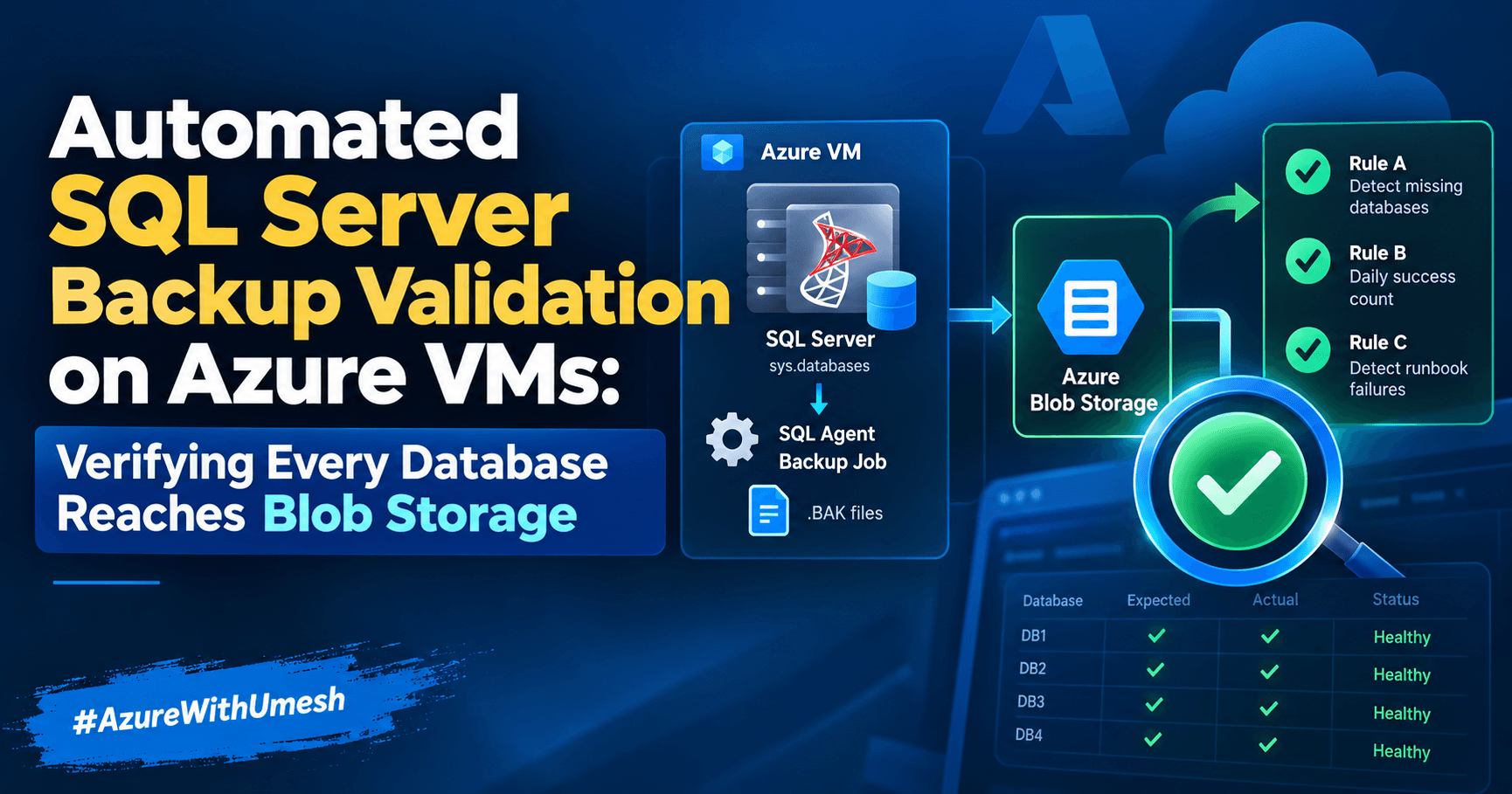
This solution confirms every night that each database on a SQL Server Azure VM has a fresh full backup in Blob Storage, and names any database that doesn't. SQL Server reports its own database list through Azure VM Run Command and Azure Automation, the storage account's logs show what was actually written, and three log search alerts act on the comparison.
The scenario it covers:
SQL Server on an Azure VM writes full backups to a blob container, with file names like
<DatabaseName>_FULL_yyyyMMdd_HHmmss.BAK.The storage account's diagnostic settings send blob logs to a Log Analytics workspace, where they land in the
StorageBlobLogstable.You need a reliable daily answer to one question: did every database get backed up?
A solid answer to that question has to do five things:
Know which databases exist on the server, without anyone maintaining a list.
Catch a new database that the backup job never picked up.
Name the missing databases in the notification.
Send a daily success notification with a count, so silence never has to be interpreted.
Raise its own alarm if the monitoring itself stops working.
The design below meets all five with standard Azure services and no agents inside the VM.
How it fits together
Two independent feeds meet in one Log Analytics workspace: the database list SQL Server reports about itself, and the record of what was actually written to Blob Storage.
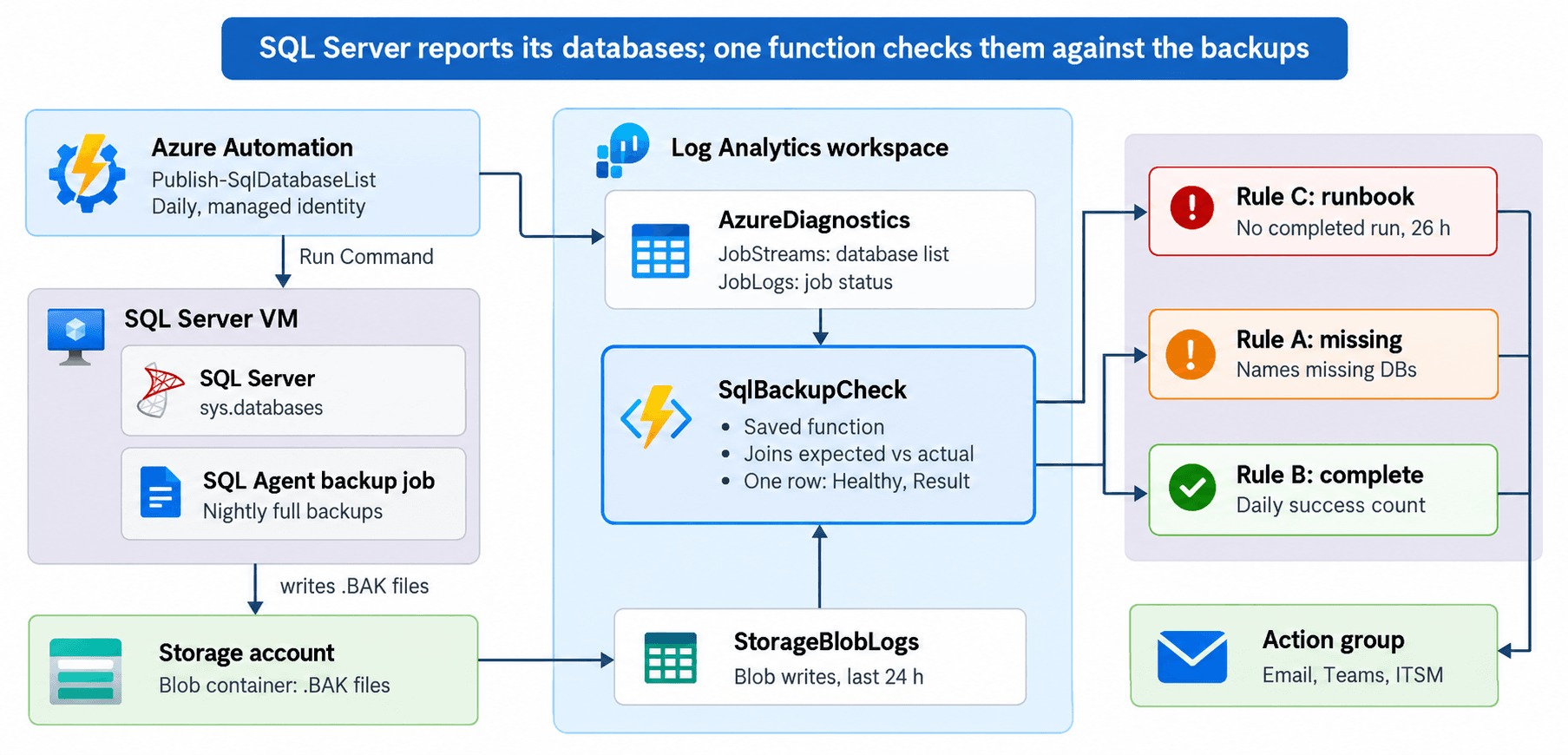
The runbook and the storage account each feed one table. The saved function joins them, Rules A and B act on its single result row, and Rule C watches the runbook's own job status.
Each night runs in four stages:
Publish the list. An Azure Automation runbook uses Run Command to query
sys.databasesinside the VM, then writes the names as oneBACKUPCHECK|line. Automation's diagnostic settings deliver that line toAzureDiagnostics.Record the backups. The SQL Agent job writes
.BAKfiles to the blob container. The storage account's diagnostic settings record every write inStorageBlobLogs.Compare. The saved function
SqlBackupCheckjoins the latest list against the last 24 hours of writes and returns one summary row.Notify. Rule A fires when anything is missing and names it. Rule B sends the daily success count. Rule C fires if the runbook hasn't completed in 26 hours.
Why Run Command and Automation
Run Command was chosen because it reads sys.databases directly, which is the only true source of the database list, and needs nothing installed or configured inside the VM. Four other approaches were considered first.
Approach | Where the list comes from | Catches a new DB that was never backed up? | Main drawback |
|---|---|---|---|
KQL self-baseline | Databases that had a backup in the last N days | No | A database the backup job never picked up is invisible; a dropped database alerts until it ages out |
Windows event log + Azure Monitor Agent | A scheduled script writes the list to the Application log; a data collection rule ships it | Yes | Needs an event source, a scheduled task, AMA and a DCR on the VM |
SQL IaaS Agent extension | The SQL virtual machine resource | Not possible | The resource only holds instance-level settings such as license type, edition and auto-backup; there is no database inventory |
Recovery Services vault discovery | Azure Backup's workload extension, read through the Protectable Items API | Yes | Requires registering the VM with a vault; enabling protection alongside native backups breaks the log chain; discovery can go stale |
Run Command + Azure Automation |
| Yes | Output is capped at the last 4,096 bytes and the script runs as SYSTEM, both easy to handle |
Run Command uses the VM agent that every Azure VM already has. Azure Automation supplies the schedule and a managed identity, and its diagnostic settings carry the runbook's output into Log Analytics. From there, plain KQL can join the database list against the storage logs.
Prerequisites
You need a working backup-to-blob setup and enough rights to create an Automation account, assign a role on the VM and create alert rules.
A Windows SQL Server VM in Azure, running at the scheduled time, with its VM agent in a Ready state.
Full backups written to a blob container with a consistent name pattern:
<DatabaseName>_FULL_yyyyMMdd_HHmmss.BAK.A Log Analytics workspace.
An existing action group for notifications (email, Teams, ITSM).
Azure rights to create an Automation account, assign roles on the VM (Owner or User Access Administrator), and create alert rules (Monitoring Contributor).
SQL Server rights to create a login, if one turns out to be missing (Step 1).
These names are used throughout. Replace them with your own.
Placeholder | Meaning |
|---|---|
| Subscription that holds the SQL VM |
| Resource group and name of the SQL VM |
| A string that appears in the backup blob path, used to filter this server's files |
| Runbook that publishes the database list |
| Saved workspace function that does the comparison |
Step 1: Prove SQL Server answers to SYSTEM
Run Command executes scripts as Local System, so the first job is to confirm that account can connect to SQL Server and see every database. Test it in exactly that context before building anything.
In the Azure portal, open the VM and go to Operations → Run command → RunPowerShellScript.
Paste the script below and click Run.
$conn = New-Object System.Data.SqlClient.SqlConnection "Server=localhost;Database=master;Integrated Security=SSPI;Connect Timeout=30"
$conn.Open()
$cmd = $conn.CreateCommand()
$cmd.CommandText = "SELECT SUSER_NAME() AS login_name, COUNT(*) AS db_count FROM sys.databases WHERE database_id > 4"
$r = $cmd.ExecuteReader(); $r.Read() | Out-Null
"$($r.GetString(0)) sees $($r.GetInt32(1)) user databases"
$conn.Close()
The expected output is NT AUTHORITY\SYSTEM sees 78 user databases, with your own count. For a named instance, use Server=localhost\INSTANCENAME.
If you get a login failure instead, create the login on the instance:
CREATE LOGIN [NT AUTHORITY\SYSTEM] FROM WINDOWS;Do not add it to sysadmin. Since SQL Server 2012, SYSTEM is no longer a sysadmin by default, and hardening baselines expect it to hold only CONNECT SQL and VIEW ANY DATABASE. Those two permissions are exactly what this query needs, because VIEW ANY DATABASE lets a login see every row in sys.databases.
The script uses System.Data.SqlClient, which ships with .NET Framework. That avoids any dependency on the SqlServer PowerShell module.
Step 2: Create the Automation account and grant it access
The runbook signs in with a system-assigned managed identity, so there are no secrets to store or rotate. That identity needs one permission on one VM.
Create an Automation account, or reuse an existing one, in the same region as the workspace.
Under Account Settings → Identity, set the system-assigned identity to On.
Use the latest PowerShell 7.x runtime for the runbook. It includes the
Az.Computemodule, which providesInvoke-AzVMRunCommand.On the SQL VM (not the resource group), open Access control (IAM) → Add role assignment and assign Virtual Machine Contributor to the Automation account's managed identity.
Running a command needs the Microsoft.Compute/virtualMachines/runCommand/action permission. If your security team wants least privilege, create a custom role containing only that action plus Microsoft.Compute/virtualMachines/read, and assign it instead.
Treat this Automation account as privileged. Anyone who can edit its runbooks can run code as SYSTEM on the SQL VM, so keep Contributor access to the account as tight as access to the VM itself.
Step 3: Send both log sources to the same workspace
The comparison joins two tables, so the storage logs and the Automation logs must land in the same Log Analytics workspace.
Storage account (backup files).
Open the storage account and go to Monitoring → Diagnostic settings.
Select the blob resource and add (or check) a diagnostic setting.
Tick at least StorageWrite and send it to your workspace. These records land in
StorageBlobLogs.
Automation account (database list and job health).
Open the Automation account and go to Monitoring → Diagnostic settings.
Add a setting that sends JobStreams and JobLogs to the same workspace.
The two categories do different jobs:
Category | Lands in | Used for |
|---|---|---|
JobStreams |
| The runbook's output line, which carries the database list |
JobLogs |
| Job status (Completed, Failed, Suspended), used by the health alert |
If your storage logs already go to a different workspace, either point the Automation setting there too, or prefix the table in the query with workspace("<name>").. Keeping everything in one workspace is simpler.
Step 4: Write the runbook
The runbook sends a small script into the VM, reads the database names it prints, checks the output is complete, and writes one line that Log Analytics will receive. In the Automation account, go to Process Automation → Runbooks → Create a runbook, name it Publish-SqlDatabaseList, choose PowerShell and the 7.x runtime, and paste:
$ErrorActionPreference = "Stop"

$subscriptionId = "<subscription-id>"
$vmRg           = "<vm-resource-group>"
$vmName         = "<vm-name>"

Connect-AzAccount -Identity -Subscription $subscriptionId | Out-Null

# Runs INSIDE the VM (Windows PowerShell 5.1, as SYSTEM)
$inVmScript = @'
$conn = New-Object System.Data.SqlClient.SqlConnection "Server=localhost;Database=master;Integrated Security=SSPI;Connect Timeout=30"
$conn.Open()
$cmd = $conn.CreateCommand()
$cmd.CommandText = "SELECT name FROM sys.databases WHERE database_id > 4 AND state_desc = 'ONLINE' AND source_database_id IS NULL ORDER BY name"
$reader = $cmd.ExecuteReader()
$names = @(while ($reader.Read()) { $reader.GetString(0) })
$conn.Close()
Write-Output ("DBLIST|" + ($names -join ";") + "|" + $names.Count)
'@

$result = Invoke-AzVMRunCommand -ResourceGroupName $vmRg -VMName $vmName `
            -CommandId "RunPowerShellScript" -ScriptString $inVmScript

$stdout = ($result.Value | Where-Object Code -like "*StdOut*").Message.Trim()
$stderr = ($result.Value | Where-Object Code -like "*StdErr*").Message
if ($stderr) { throw "Script error on VM: $stderr" }

# DBLIST| at the start and the count at the end catch truncated output
if ($stdout -notmatch '^DBLIST\|(.*)\|(\d+)$') { throw "Unexpected or truncated output: $stdout" }
$dbs = @($Matches[1] -split ";" | Where-Object { $_ })
if ($dbs.Count -eq 0 -or $dbs.Count -ne [int]$Matches[2]) {
    throw "Count mismatch: parsed $($dbs.Count), VM reported $($Matches[2])"
}

Write-Output ("BACKUPCHECK|" + ($dbs -join ";"))
What each part does:
Sign-in.
Connect-AzAccount -Identityuses the managed identity from Step 2.Out-Nullkeeps the sign-in details out of the output stream, so only the final line reaches Log Analytics.The in-VM script. The single-quoted here-string (
@' ... '@) is sent as-is, so its$variables are evaluated inside the VM, not in Automation. TheWHEREclause skips the four system databases (database_id > 4), offline databases and database snapshots. Adjust it to match exactly what your backup job covers, so the two lists agree by definition.Run Command.
-ScriptStringpasses the script inline, so nothing has to exist on the VM's disk. The call waits for the script to finish, usually in under a minute.Reading the result. Run Command returns two messages, one for standard output and one for standard error. Filtering on the
Codeproperty is safer than relying on their position. Any text on standard error fails the job.Truncation guard. Run Command keeps only the last 4,096 bytes of output, so a very long list would lose its beginning, not its end. The in-VM script starts its line with
DBLIST|and ends it with the count. If the marker is missing or the parsed count differs, the runbook throws. Around 80 database names is roughly 2 KB, which leaves plenty of headroom.The published line.
BACKUPCHECK|name1;name2;...is the only output. The KQL in Step 6 looks for that exact prefix.
$ErrorActionPreference = "Stop" turns every error into a failed job. A broken run is then visible as a failure, never as a silently empty or stale list.
Step 5: Test, publish and schedule the runbook
Run the runbook once by hand, confirm its line reaches the workspace, then put it on a daily schedule.
Open the runbook, click Test pane, then Start. The output should be a single line beginning
BACKUPCHECK|followed by your database names.Click Publish. A runbook that is only saved, not published, can't be scheduled.
Go to Resources → Schedules → Add a schedule → Link a schedule to your runbook. Create a daily recurring schedule, set its time zone to UTC (the same clock the alert rules use), and set the time to about 30 minutes before your backup job starts. Step 9 explains how to choose it.
After the first scheduled run, give the logs a few minutes to arrive, then confirm in the workspace:
AzureDiagnostics
| where ResourceProvider == "MICROSOFT.AUTOMATION" and Category == "JobStreams"
| where ResultDescription startswith "BACKUPCHECK|"
| project TimeGenerated, RunbookName_s, ResultDescription
Running the runbook just before the backups start means the list matches exactly what that night's backup job should process.
Step 6: Build and validate the comparison query
The query takes the latest database list from the runbook, takes the backup files written in the last 24 hours, and joins them from the expected side so missing databases show up by name. Open the workspace's Logs blade and run this validation version first:
let window   = 24h;
// DBs that exist on the server but are intentionally not backed up (lowercase + "_full")
let excluded = dynamic([
    "appdb_live_site03_full", "legacy_archive_full"
]);
// Expected: latest database list published by the runbook
let expected = AzureDiagnostics
| where TimeGenerated >= ago(2d)
| where ResourceProvider == "MICROSOFT.AUTOMATION" and Category == "JobStreams"
| where StreamType_s == "Output" and ResultDescription startswith "BACKUPCHECK|"
| summarize arg_max(TimeGenerated, ResultDescription)
| mv-expand DbName = split(replace_string(ResultDescription, "BACKUPCHECK|", ""), ";") to typeof(string)
| extend DbName = trim(@"\s+", DbName)
| where isnotempty(DbName)
| extend DatabasePrefix = tolower(strcat(DbName, "_FULL"))
| where DatabasePrefix !in (excluded)
| project DatabasePrefix;
// Actual: backup files successfully written to blob storage
let backups = StorageBlobLogs
| where TimeGenerated >= ago(window)
| where OperationName in ("PutBlob", "PutBlockList")
| where StatusText == "Success"
| where ObjectKey contains "sqlprd"
| extend BlobName = tostring(split(ObjectKey, "/")[-1])
| extend DatabasePrefix = tolower(extract(@"(?i)^(.+)_\d{8}_\d{6}\.bak$", 1, BlobName))
| where isnotempty(DatabasePrefix)
| summarize LastBackup = max(TimeGenerated) by DatabasePrefix;
// Compare from the expected side so missing DBs appear
expected
| join kind=leftouter backups on DatabasePrefix
| extend BackupStatus = iff(isnotnull(LastBackup), "Present", "Missing")
| project DatabasePrefix, BackupStatus, LastBackup
| order by BackupStatus asc, DatabasePrefix asc
How the query works
excludedlists databases that exist on the server but are deliberately not backed up, such as a decommissioned database kept for reference. Write each entry in lowercase with_fullon the end. It's the only list you will ever maintain.expectedreads the runbook's output fromAzureDiagnostics.arg_maxkeeps only the newestBACKUPCHECK|line, so a database dropped yesterday disappears from today's check.mv-expandturns the semicolon-separated names into one row per database. Each name gets_FULLappended and is lowercased, to match how backup files are named. The 2-day lookback means one failed runbook run doesn't break the check; it simply uses the previous day's list.backupsreads successful blob writes from the last 24 hours. Small files are written in a singlePutBlob, while large backups are uploaded in blocks and committed withPutBlockList, so both operations count.StatusText == "Success"ignores failed writes. The regex strips the_yyyyMMdd_HHmmss.baksuffix to recover the prefix, case-insensitively.The join starts from
expectedwithleftouter, which keeps every expected database. One with no matching backup has an emptyLastBackupand is marked Missing.
The lowercase step on both sides matters: KQL joins are case-sensitive, and a backup tool may not preserve the database name's exact casing.
Why 2 days and not more
A log search alert can't scan more than 2 days of data, even if the query asks for more. A query containing ago(3d) silently behaves like ago(2d) inside an alert, so the query uses 2 days to say what it actually does.
What to check in the results
Missing databases sort to the top. Work through three checks before going further:
Unexpected Missing rows. System or utility databases you never back up (for example
SSISDBorReportServer) show up here. Add them toexcluded.Known databases. Spot-check a few databases you know are backed up nightly. Each should show Present with a recent LastBackup.
Naming mismatches. To find backup files that don't match any database, replace everything from the final
expectedline down with:
backups
| join kind=leftanti expected on DatabasePrefix
Any rows returned are backup files whose prefix doesn't match a database name, which usually means the backup tool names files differently from the database. Fix the regex or the naming before you rely on the alert.
Step 7: Save the logic as a workspace function
Saving the query as a function means both backup alert rules call the same logic, and a change to excluded is made once. First turn the per-database view into a one-row summary the alerts can act on.
Remove the last two lines of the validation query (
projectandorder by).Append this summary:
| summarize Expected   = count(),
            Missing    = countif(BackupStatus == "Missing"),
            MissingDbs = make_list_if(DatabasePrefix, BackupStatus == "Missing")
| extend Result      = strcat(Expected - Missing, " of ", Expected, " databases backed up"),
         MissingList = iff(Expected == 0, "No database list received - check runbook Publish-SqlDatabaseList",
                           strcat_array(MissingDbs, ", ")),
         Healthy     = iff(Expected > 0 and Missing == 0, 1, 0)
Run it. You should get exactly one row, for example
78 of 78 databases backed upwithHealthy = 1.Click Save → Save as function and fill in the panel:
Field | Value |
|---|---|
Function name |
|
Legacy category | Any label, such as |
Save as computer group | Unticked |
Function parameters | Leave the row empty |
The legacy category is only a folder label for organizing saved queries and functions. It has no effect on how the function runs or how alerts use it, but the Save button stays disabled until it has a value.
Function names are case-sensitive in KQL. Run SqlBackupCheck on its own in a new query tab and confirm it returns the same single row.
What each summary column is for
Column | Meaning | Used by |
|---|---|---|
| Number of databases that should have a backup |
|
| Number of expected databases with no backup |
|
| Human-readable count, such as | Notification text in both backup alerts |
| Comma-separated missing names, or a warning when no list arrived | Notification text in the failure alert |
| 1 when everything is backed up, otherwise 0 | Decides which alert fires |
The Expected > 0 condition is the safety net. If the runbook stops publishing, expected is empty and nothing could be marked Missing. Without the guard, that would look like a perfect day. With it, Healthy is 0 and the failure alert fires with a message pointing at the runbook.
A summarize with no by clause always returns one row, even on empty input, so the function never returns zero rows.
Step 8: Create the three alert rules
Three rules cover every outcome: backups missing, backups complete, and the monitoring itself not running. All three are scoped to the Log Analytics workspace, not the storage account, because the queries read tables from two different resources.
The rule queries
Rule A: databases missing
SqlBackupCheck
| where Healthy == 0
| project Result, MissingList
Rule B: all databases backed up
SqlBackupCheck
| where Healthy == 1
| project Result
Rule C: database list runbook not completed. This catches failed or suspended jobs, a broken or expired schedule, and Automation logs that stop arriving, because it looks for the absence of a successful run.
AzureDiagnostics
| where TimeGenerated >= ago(26h)
| where ResourceProvider == "MICROSOFT.AUTOMATION" and Category == "JobLogs"
| where RunbookName_s == "Publish-SqlDatabaseList" and ResultType == "Completed"
| summarize CompletedRuns = count()
| where CompletedRuns == 0
| extend Problem = "No successful run of Publish-SqlDatabaseList in the last 26 hours"
The 26-hour window gives a daily job 2 hours of slack before Rule C fires.
Creating each rule
Go to Monitor → Alerts → Create → Alert rule.
Scope: select the Log Analytics workspace.
Condition: set Signal to Custom log search and Query type to Aggregated logs, then paste the rule's query. Fill in Measurement, Split by dimensions, Alert logic and Advanced options from the table below.
Actions: select your action group.
Details: set the severity and name, then expand Advanced options and set Automatically resolve alerts as shown below.
Click Review + create.
Setting | Rule A: databases missing | Rule B: all backed up | Rule C: runbook health |
|---|---|---|---|
Scope | Workspace | Workspace | Workspace |
Measure | Table rows | Table rows | Table rows |
Aggregation type | Count | Count | Count |
Aggregation granularity | 1 day | 1 day | 1 hour |
Split by dimensions |
|
| None |
Include all future values | Ticked on both | Ticked | — |
Operator / threshold | Greater than 0 | Greater than 0 | Greater than 0 |
Frequency of evaluation | 1 day | 1 day | 1 hour |
Number of violations | 1 of 1 | 1 of 1 | 1 of 1 |
Override query time range | 2 days | 2 days | 2 days |
Severity | 1 – Error | 4 – Verbose | 2 – Warning |
Automatically resolve alerts | Off | Off | On |
Suggested name | SQL backup – databases missing | SQL backup – all databases backed up | SQL backup – DB list runbook not completed |
The settings that matter most
Override query time range = 2 days, on every rule. Without it, the query time range follows the aggregation granularity. The function would then see only the last day of runbook output (or the last hour, for Rule C), and the 2-day fallback for a missed runbook run would never apply. Rule C needs the override so its 26-hour lookback isn't cut to 1 hour, which would make it fire every hour.
Automatically resolve alerts = Off for Rules A and B. With it on, a rule is stateful: it fires once and stays fired while the condition holds. Rule B would send one success email and then fall silent every day after, and Rule A would only notify on the first day of a failure that continues. Off makes both rules notify on every evaluation. Rule C keeps it On, so you get one alert when the runbook stops and it clears itself after the next successful run.
Dimensions put the details in the notification. Splitting by Result and MissingList puts the count and the missing names directly in the alert payload and email. If many databases are missing, for example when the whole backup job failed, the View query results link in the email always shows the full list.
Include all future values must stay ticked. The dimension values change from day to day: 78 of 78 databases backed up becomes 79 of 79 the day a database is added. If the portal pre-selects today's value and the box is unticked, Rule B would only ever fire on that exact text and stop the day the count changes. After saving, open the rule, go to Overview → JSON View, and confirm each dimension's values show "*" rather than literal text.
Portal quirks you'll see
"This query doesn't return an Azure resource ID column". This note is expected. It means the alert targets the workspace as a whole, which is what you want.
Empty dimension picker. The dimension list is filled from the query preview. If everything is healthy right now, Rule A's preview returns no rows and shows "0 selected" with the note that no values exist yet. That's fine with Include all future values ticked. If the columns don't appear at all, change
Healthy == 0toHealthy >= 0temporarily, select the dimensions, then change it back before saving.Estimated monthly cost shows Variable. Rules split by dimensions are billed per time series monitored, so the portal can't show a fixed figure. One evaluation per day with a single result row keeps the cost very low.
Step 9: Choose when the daily check runs
A log search alert rule has no "run at" setting: you choose a frequency, and the rule starts evaluating within a few minutes of being created. Microsoft's documentation states plainly that the frequency is not a specific time of day. A daily rule therefore runs at roughly the time of day you created it, so create Rules A and B at the moment you want the check to happen.
Find your real backup window
Run this in Logs to see when backup files actually land each day. All times are UTC.
StorageBlobLogs
| where TimeGenerated >= ago(7d)
| where OperationName in ("PutBlob", "PutBlockList") and StatusText == "Success"
| where ObjectKey contains "sqlprd" and ObjectKey contains "_FULL_"
| summarize FirstFile = min(TimeGenerated), LastFile = max(TimeGenerated), Files = count()
          by BackupDay = bin(TimeGenerated, 1d)
| order by BackupDay desc
Files should match your database count each day. The latest LastFile across the week is your worst-case finish time. If your backups cross midnight UTC, one night's run is split across two rows, so read them together.
Put the jobs in order
Job | When |
|---|---|
Runbook (database list) | About 30 minutes before the backup job starts |
Backup job (SQL Agent) | Unchanged |
Rules A and B (the check) | Created 1–2 hours after the latest finish time |
Rule C (runbook health) | Any time; it runs hourly |
For example, if backups start at 01:00 UTC and the latest file lands around 03:10 UTC, schedule the runbook for 00:30 UTC and create Rules A and B at about 05:00 UTC.
The buffer before the check does three jobs. It gives the storage logs time to arrive in the workspace, absorbs nights when backups run long, and covers daylight saving changes.
Daylight saving time
The alert rules and the Automation schedule (set to UTC in Step 5) never move. If the SQL Agent job runs on a local clock that observes daylight saving, such as UK time, the backups happen an hour earlier in UTC in summer than in winter. Base your buffer on the summer finish time and the same rule works year-round. If the VM's clock is set to UTC, this doesn't apply.
Choosing a time people can act on
The check time is also when the success or failure email arrives. Pick an hour when someone can respond to a failure before the business day starts. To move the check later, recreate Rules A and B at the new time, then delete the old ones.
As databases grow, backups take longer. Re-run the backup window query every few months and recreate the rules later if the buffer gets thin.
Step 10: Prove it works end to end
Before relying on the alerts, watch a few normal nights and then trigger each failure path on purpose.
Check the success path. Let the solution run for 2–3 nights. Each success email's count should equal the number of online user databases on the server, minus anything in
excluded. You can get that number withSELECT COUNT(*) FROM sys.databases WHERE database_id > 4 AND state_desc = 'ONLINE'.Trigger Rule A. After the night's backups finish and before the check time, create a small empty database such as
BackupAlertTest, then start the runbook manually from the Automation account. A few minutes later, runSqlBackupCheckin Logs: it should show one database missing. At the check time, Rule A should fire withbackupalerttest_fullinMissingList. Drop the test database afterwards; the next runbook run removes it from the list.Trigger Rule C (optional). Disable the runbook's schedule for a day. Rule C should fire about 26 hours after the last successful run, and resolve itself after you re-enable the schedule and the next run completes.
Read the notifications. Confirm the emails show the
Resultcount and, for Rule A, the missing names. If they don't, check the dimensions and Include all future values in Step 8.
Day-2 operations
The only routine task is adding a database to excluded when it exists on the server but is deliberately not backed up. Everything else maintains itself.
Event | What happens | Action needed |
|---|---|---|
New database created | Next runbook run adds it to the list; it's checked that night | None |
New database the backup job doesn't cover | Flagged Missing by name in the next check | Fix the backup job, or add it to |
Database dropped | Next runbook run removes it from the list | None |
Database intentionally not backed up | Would be flagged Missing every day | Add it to |
Runbook fails one night | Check uses the previous day's list; Rule C fires | Investigate the job; the check keeps working |
Runbook stops for 2+ days | Rule A fires with "No database list received"; Rule C fires | Fix the runbook or schedule |
Whole backup job fails | Rule A fires with every database in | Investigate the backup job |
Storage diagnostic logs stop | Every database shows Missing; Rule A fires | Check the storage diagnostic setting |
To edit excluded, open the workspace's Logs, go to Functions, open SqlBackupCheck, change the list and save it. Both backup rules pick up the change on their next run.
Troubleshooting
Symptom | Likely cause | Fix |
|---|---|---|
Runbook fails with a login error from the VM |
| Create the login (Step 1) |
Runbook fails with an authorization error | Managed identity lacks the Run Command permission on the VM | Assign the role on the VM (Step 2) |
Runbook fails because Run Command can't run | VM stopped, VM agent not Ready, or another Run Command already in progress | Start the VM or wait, then rerun the job |
Runbook throws "Unexpected or truncated output" | Output exceeded 4,096 bytes, or extra text on standard output | Shorten the output or remove stray |
Rule A fires every day for the same database | Database isn't backed up by design, or its backup file name doesn't match | Add it to |
Rule B sent one email and then stopped | Automatically resolve alerts is on | Turn it off on Rules A and B |
Rule B stopped after a database was added | Dimension pinned to old literal text | Tick Include all future values; check JSON View shows |
Every database Missing but backups ran | Query time range too short, or storage logs in another workspace | Set Override query time range to 2 days; check Step 3 |
| Wrong case or name | Function names are case-sensitive; match it exactly |
Wrap-up
Every night, SQL Server reports its own databases, the storage logs report what was actually written, and one saved function compares the two. The result is three alerts that name what's missing, confirm what succeeded and watch the monitoring itself.
The building blocks are standard Azure: Run Command, Azure Automation with a managed identity, diagnostic settings, a workspace function and log search alerts. Nothing runs on the VM between checks, and there's no agent or data collection rule to maintain.
The same pattern works anywhere an alert needs a list that lives inside a VM: Windows services that should be running, scheduled tasks, IIS sites or file shares. Swap the in-VM query, keep the runbook's markers and guards, and compare against the logs you already collect.