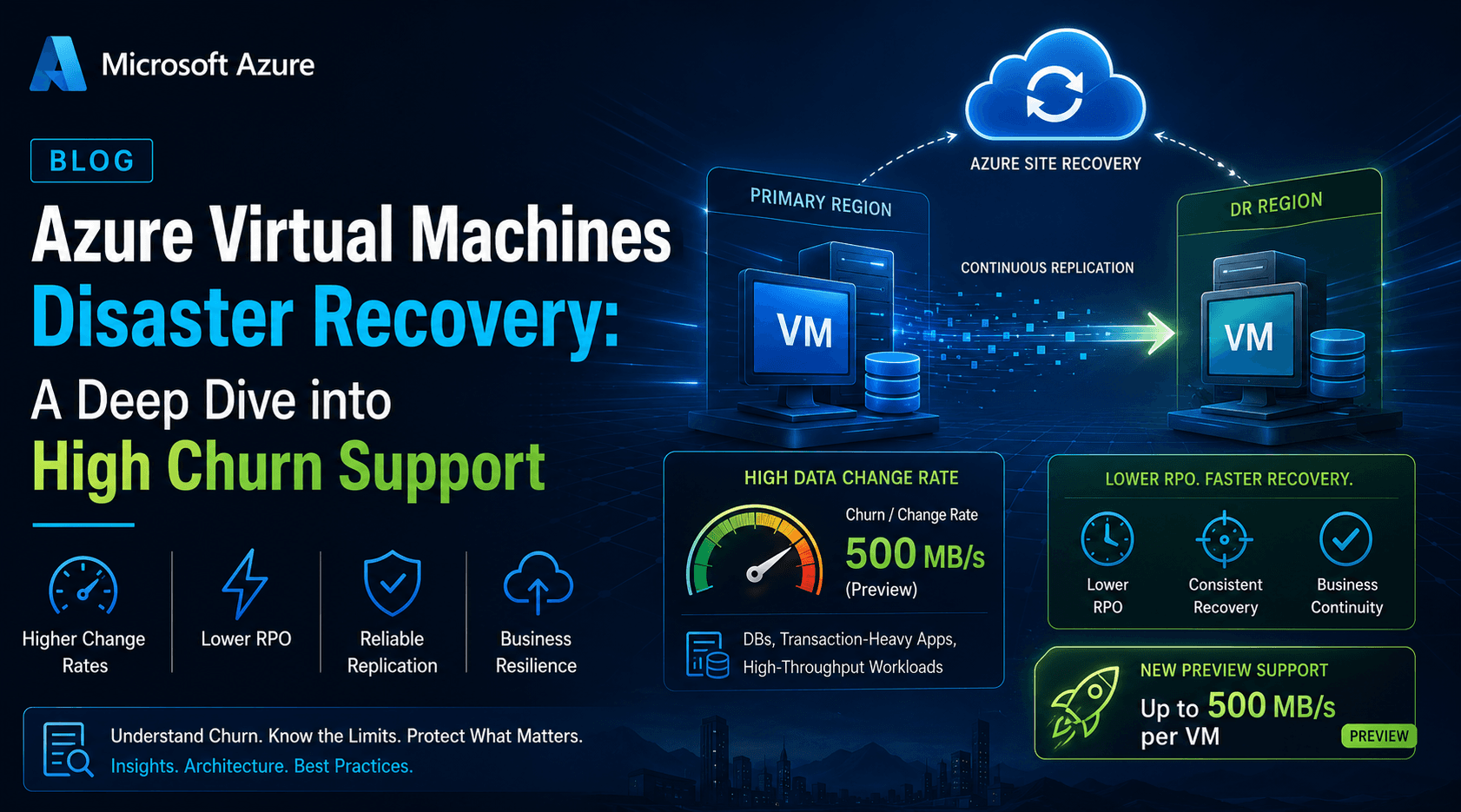
When it comes to disaster recovery (DR), most conversations start and end with "how fast can I fail over?" But there's a quieter, equally important question that often gets overlooked until it's too late: can your replication engine actually keep up with how fast your data changes?
For database servers, transaction-heavy applications, and other high-throughput workloads running on Azure Virtual Machines, this "data change rate" — or churn — can be the deciding factor between a Recovery Point Objective (RPO) you can live with and one that puts your business at risk. This is exactly the problem Azure Site Recovery's High Churn support is designed to solve.
This article walks through what churn means in the context of Azure-to-Azure disaster recovery, how High Churn support works, its limitations and costs, and the newer preview capability that pushes supported churn all the way up to 500 MB/s per VM.
What Is "Churn" in Azure Site Recovery?
In Azure Site Recovery (ASR), churn refers to the rate at which data changes on a protected virtual machine's disks — essentially, how much new or modified data needs to be captured and replicated to the target region over a given period, measured in MB/s. Databases, high-transaction line-of-business systems, and busy file servers tend to generate much higher churn than a typical web front-end or lightly used application server.
The problem with high churn is straightforward: if your replication pipeline can't process data changes as fast as they're generated, the replication backlog grows, your recovery point drifts further from "now," and in worst cases replication health can degrade entirely.
Normal Churn vs. High Churn
By default, Azure Site Recovery protects Azure VMs using the Normal Churn option, which supports data change rates of up to 54 MB/s per virtual machine. For most general-purpose workloads, this is more than sufficient.
However, for VMs running high-churn workloads — most commonly databases — Azure Site Recovery offers a High Churn option that raises the supported churn ceiling to 100 MB/s per virtual machine. The key architectural difference between the two options comes down to the cache storage account used during replication:
Normal Churn uses Standard storage accounts for cache storage.
High Churn uses Premium Block Blob storage accounts for cache storage, which offer significantly higher throughput and lower latency — enabling the higher sustained churn rate and potentially a better RPO for demanding workloads.
Limitations to Keep in Mind
Before enabling High Churn, there are a few constraints worth planning around:
It's available only for disaster recovery scenarios involving Azure virtual machines (Azure-to-Azure DR).
Microsoft recommends VM SKUs with a minimum of 32 GB of RAM.
Source disks must be managed disks.
High Churn is supported in all regions where Azure Site Recovery itself is supported and where Premium Blob storage accounts are available. Using High Churn in a region without Premium Blob storage support can cause replication or reprotection failures — so it's worth checking regional availability before committing to a design.
Understanding the Data Change Limits
Azure publishes churn limits based on internal testing, though Microsoft is clear that actual results will vary depending on your specific application I/O patterns. There are two dimensions to think about: per-disk churn and per-VM churn, with the overall per-VM ceiling capped at 100 MB/s for the standard High Churn option.
The average I/O size of your workload has a major effect on how much churn a disk can sustain. Here's the general breakdown:
Replica Disk Type | Avg I/O Size | Avg Churn Supported |
|---|---|---|
Standard | 8 KB | 2 MB/s |
Standard | 16 KB | 4 MB/s |
Standard | 24 KB | 6 MB/s |
Standard | 32 KB and later | 8 MB/s |
Premium SSD (128 GiB+) | 8 KB | 10 MB/s |
Premium SSD (128 GiB+) | 16 KB | 20 MB/s |
Premium SSD (128 GiB+) | 24 KB and later | 30 MB/s |
Premium SSD (512 GiB+) | 8 KB | 10 MB/s |
Premium SSD (512 GiB+) | 16 KB | 20 MB/s |
Premium SSD (512 GiB+) | 24 KB and later | 30 MB/s |
Premium SSD (1 TiB+) | 8 KB | 20 MB/s |
Premium SSD (1 TiB+) | 16 KB | 35 MB/s |
Premium SSD (1 TiB+) | 24 KB and later | 50 MB/s |
The takeaway: larger I/O sizes and larger, higher-tier disks generally support significantly more churn. If you're designing DR for a database workload, it pays to understand its actual I/O profile (block size, read/write mix) rather than relying on assumptions.
How to Enable High Churn Support
High Churn can only be enabled at the time replication is first configured — it cannot be turned on for a VM that's already being replicated without disabling and re-enabling protection. There are two places in the Azure portal where you can configure it.
Option 1: From the Recovery Services Vault
Select the source virtual machines you want to protect and begin the standard "enable replication" workflow.
Under Replication Settings > Storage, select View/edit storage configuration to open the Customize target settings page.
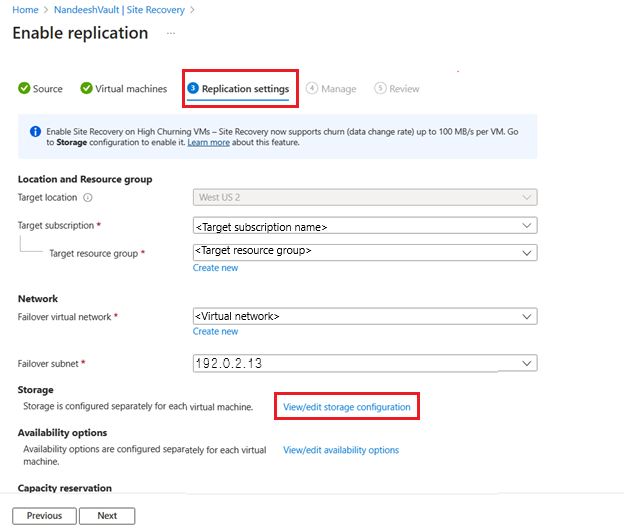
- Under Churn for the VM, choose between:
Normal Churn (default) — up to 54 MB/s, uses Standard storage accounts for cache storage.
High Churn — up to 100 MB/s, uses Premium Block Blob storage accounts for cache storage.
- Select High Churn. If you're configuring replication for multiple VMs at once, you can apply High Churn at the top level to all of them simultaneously.
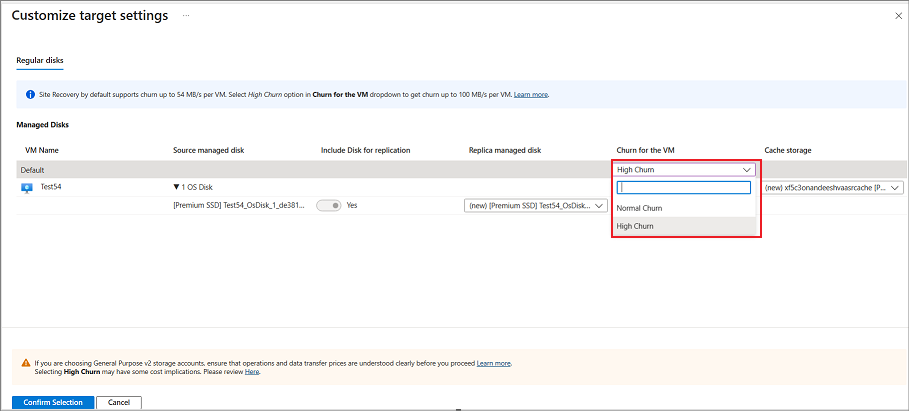
- Once High Churn is selected, only Premium Block Blob storage accounts will appear in the cache storage dropdown. Choose one and select Confirm Selection.
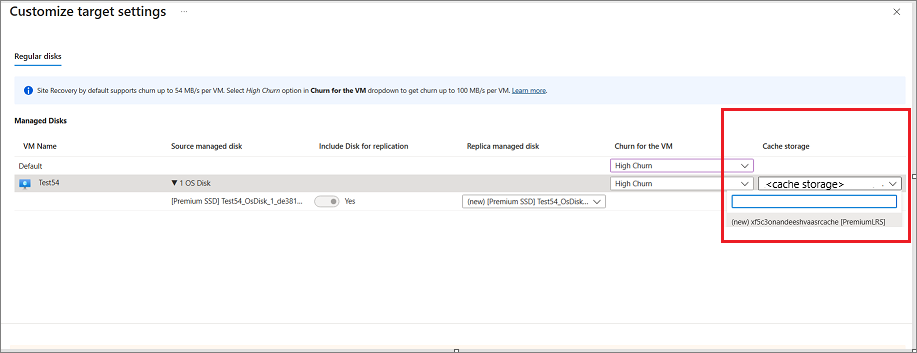
- Complete the rest of the replication configuration as usual.
Option 2: From the Virtual Machine Blade
- In the Azure portal, navigate to Virtual machines and select the VM you want to protect.
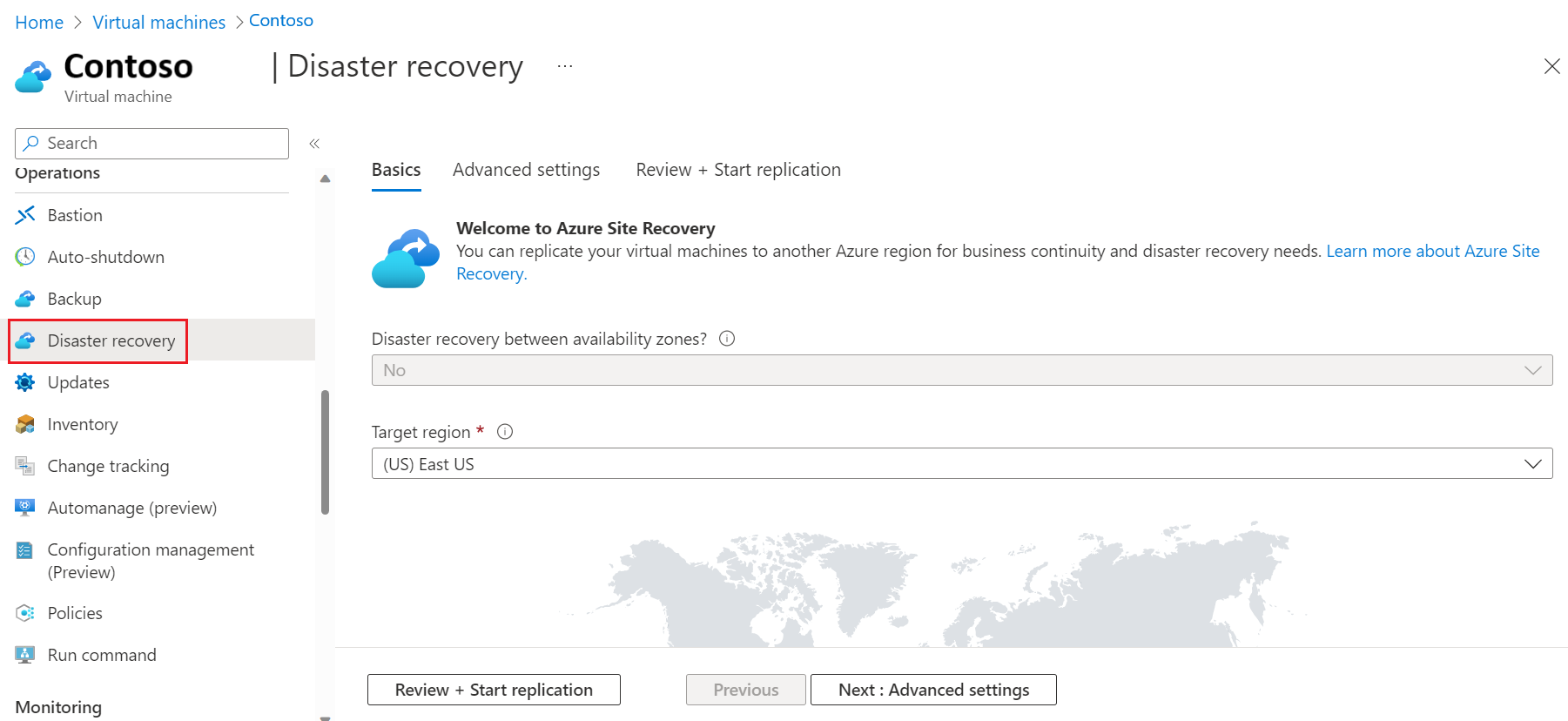
Under Operations, select Disaster recovery.
Under Basics, choose the target region and continue to Advanced settings.
Configure subscription, resource group, virtual network, availability, and proximity placement group as needed.
Under Storage settings, select Show details.
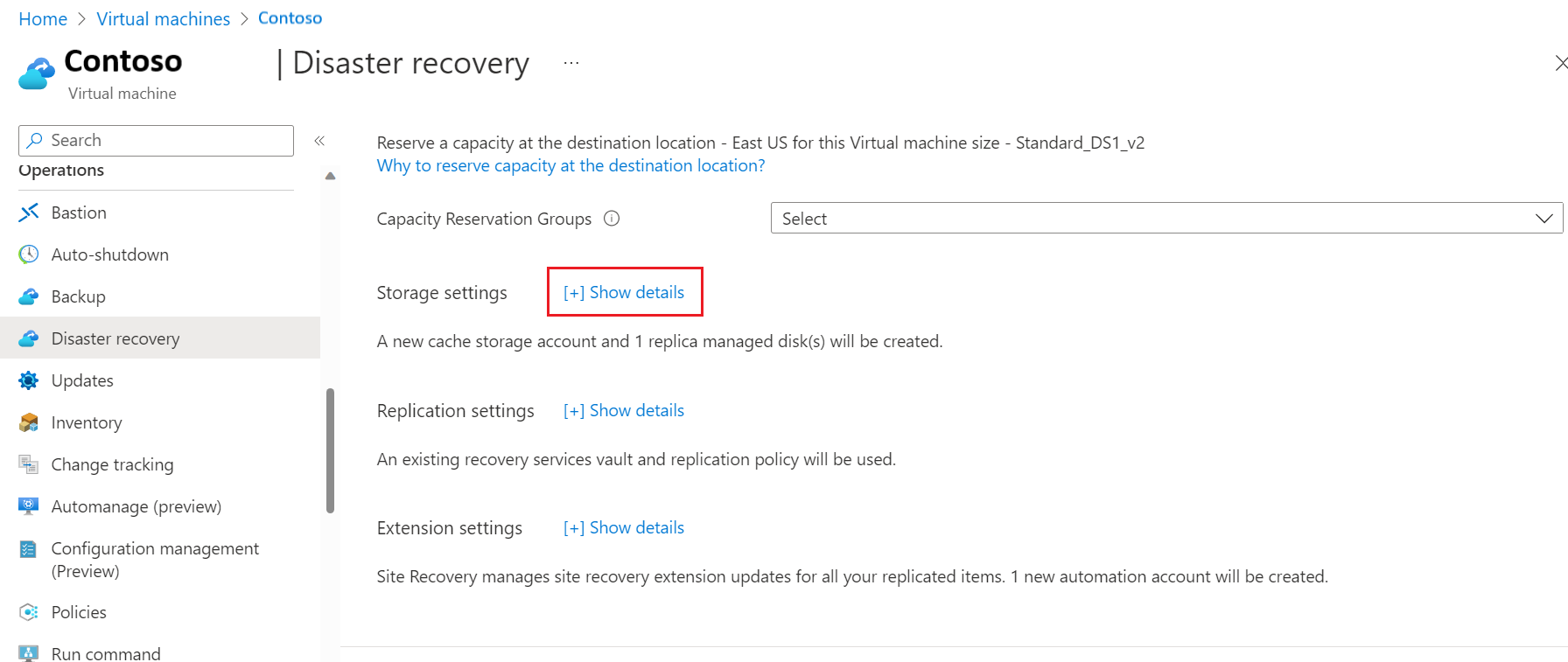
- Under Churn for the VM, select High Churn. Again, only Premium Block Blob storage accounts will be selectable for cache storage
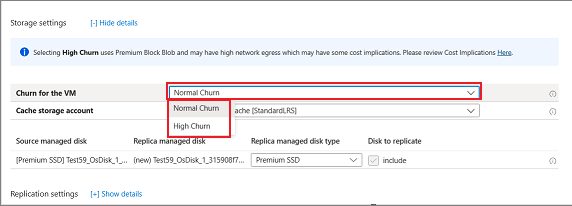
- Continue to Review + Start replication.
Important: If a VM is already protected under Normal Churn and you later need High Churn (or vice versa), you'll need to disable replication and re-enable it with the desired churn setting — there's no in-place toggle.
Cost Implications
High Churn isn't free of trade-offs, and it's worth budgeting for two cost factors:
Storage costs — Premium Block Blob storage accounts, required for High Churn, are generally more expensive than the Standard storage accounts used with Normal Churn.
Network costs — Because high-churn VMs generate and replicate more data changes to the target region, you may see higher outbound network/bandwidth costs compared to a Normal Churn configuration.
These costs should factor into your overall DR TCO calculations, particularly if you're protecting a large fleet of database servers.
What's New: Enhanced Churn Support up to 500 MB/s (Preview)
For organizations running extremely I/O-intensive workloads, Microsoft has introduced a preview capability that extends churn support well beyond the standard 100 MB/s ceiling — up to 500 MB/s per VM, with per-disk churn supported up to 250 MB/s.
Key Details of the Preview
Configuration follows the same steps as standard High Churn setup — there's no separate toggle. If your workload's churn exceeds 100 MB/s, Azure Site Recovery will automatically extend support up to 500 MB/s per VM (within the preview's supported regions and requirements), using Premium Block Blob storage for cache.
RAM requirements are steeper. To support churn up to 500 MB/s, the Azure VM must have at least 256 GB of RAM. If RAM falls below that threshold, the churn limit reverts to 100 MB/s. Note also that Site Recovery reserves up to 6.25% of VM RAM (capped at 16 GB) for its own operations.
OS support is currently limited to Windows, and on Linux specifically to RHEL 9, SLES 15, and Ubuntu 24.04.
Disk requirements are stricter too — source disks must be Premium SSD v1, Premium SSD v2, or Ultra Disk.
Sufficient networking and CPU headroom on the source VM is essential, since Site Recovery needs enough resources available to keep pace with replicating data changes.
Updated Churn Limits by Disk Size and I/O Size
The preview's supported churn scales with both source disk size and average I/O size. Larger disks with larger I/O sizes can sustain dramatically higher churn — up to the 250 MB/s per-disk ceiling:
Source Disk Size (GiB) | 8 KB IO | 16 KB IO | 32 KB IO | 64 KB IO | 128 KB IO | 256 KB+ |
|---|---|---|---|---|---|---|
128 | 3.9 MB/s | 7.8 MB/s | 11.5 MB/s | 33.1 MB/s | 66.1 MB/s | 100 MB/s |
256 | 8.6 MB/s | 17.2 MB/s | 34.4 MB/s | 68.8 MB/s | 125 MB/s | 125 MB/s |
512 | 18.0 MB/s | 35.9 MB/s | 71.9 MB/s | 143.8 MB/s | 150 MB/s | 150 MB/s |
1,024 | 39.1 MB/s | 78.1 MB/s | 156.3 MB/s | 200.0 MB/s | 200 MB/s | 200 MB/s |
2,048 | 58.6 MB/s | 117.2 MB/s | 234.4 MB/s | 250.0 MB/s | 250 MB/s | 250 MB/s |
4,096 | 58.6 MB/s | 117.2 MB/s | 234.4 MB/s | 250.0 MB/s | 250 MB/s | 250 MB/s |
8,192 | 125.0 MB/s | 250.0 MB/s | 250 MB/s | 250 MB/s | 250 MB/s | 250 MB/s |
16,384 | 140.6 MB/s | 250 MB/s | 250 MB/s | 250 MB/s | 250 MB/s | 250 MB/s |
32,767 | 156.3 MB/s | 250 MB/s | 250 MB/s | 250 MB/s | 250 MB/s | 250 MB/s |
Note that while individual disks can be supported up to 250 MB/s, the overall per-VM ceiling in this preview is 500 MB/s.
Region Availability
As of this writing, the 500 MB/s enhanced churn preview is available only when both the source and target regions fall within this list:
Australia East, Australia Southeast, Central India, Central US, East Asia, East US 2, France Central, Germany North, Japan East, Japan West, North Central US, Norway East, Qatar Central, South Africa North, South Central US, Southeast Asia, UAE Central, UAE North, UK South, West Central US, West US, West US 2, and West US 3.
If your DR pair doesn't fall within these regions, you'll be limited to the standard 100 MB/s High Churn ceiling for now — worth checking before you design a cross-region DR topology around this preview feature.
An Important Migration Note
If you already have a VM protected with the standard High Churn option before this preview became available, it will remain capped at 100 MB/s — even if the VM otherwise meets all the preview's requirements. To take advantage of the higher 500 MB/s ceiling, you'll need to disable and re-enable Site Recovery protection, selecting High Churn again during setup. There's no in-place upgrade path.
Putting It All Together: A Practical Approach
If you're planning disaster recovery for high-throughput Azure workloads, here's a sensible way to approach the decision:
Profile your workload first. Understand your VM's actual data change rate and typical I/O size — don't guess. Tools like Performance Monitor (Windows) or
iostat(Linux) can help establish a baseline.Start with Normal Churn if your workload comfortably sits under 54 MB/s — it's cheaper and simpler.
Move to High Churn for database and transactional workloads that exceed Normal Churn limits, keeping in mind the 32 GB RAM recommendation and managed disk requirement.
Consider the 500 MB/s preview only for the most extreme, high-throughput scenarios — and only after confirming region availability, the 256 GB RAM requirement, supported OS versions, and Premium/Ultra disk requirements.
Budget for the cost delta. Premium Block Blob storage and increased network egress both add cost — factor this into your DR business case up front rather than discovering it on your first invoice.
Remember the "disable and re-enable" rule. Churn settings can't be changed on the fly for an already-protected VM, so get this decision right during initial onboarding, or plan for a maintenance window to reconfigure.
Final Thoughts
Disaster recovery planning is often framed purely in terms of RTO and RPO targets, but the underlying plumbing — specifically, whether your replication engine can absorb your workload's actual data change rate — is just as critical. Azure Site Recovery's High Churn option, and its newer 500 MB/s preview tier, give organizations a purpose-built way to protect their most demanding, high-transaction workloads without letting replication lag erode their recovery objectives.
As with any preview feature, it's worth testing thoroughly in a non-production environment, keeping a close eye on official Microsoft Learn documentation for updates on region availability and requirements as the feature moves toward general availability.
For the most current and authoritative details, always refer to the official Microsoft Learn documentation on Azure Virtual Machines disaster recovery – High Churn support.
Discussion (0)
Sign in to join the discussion. Comments are moderated.